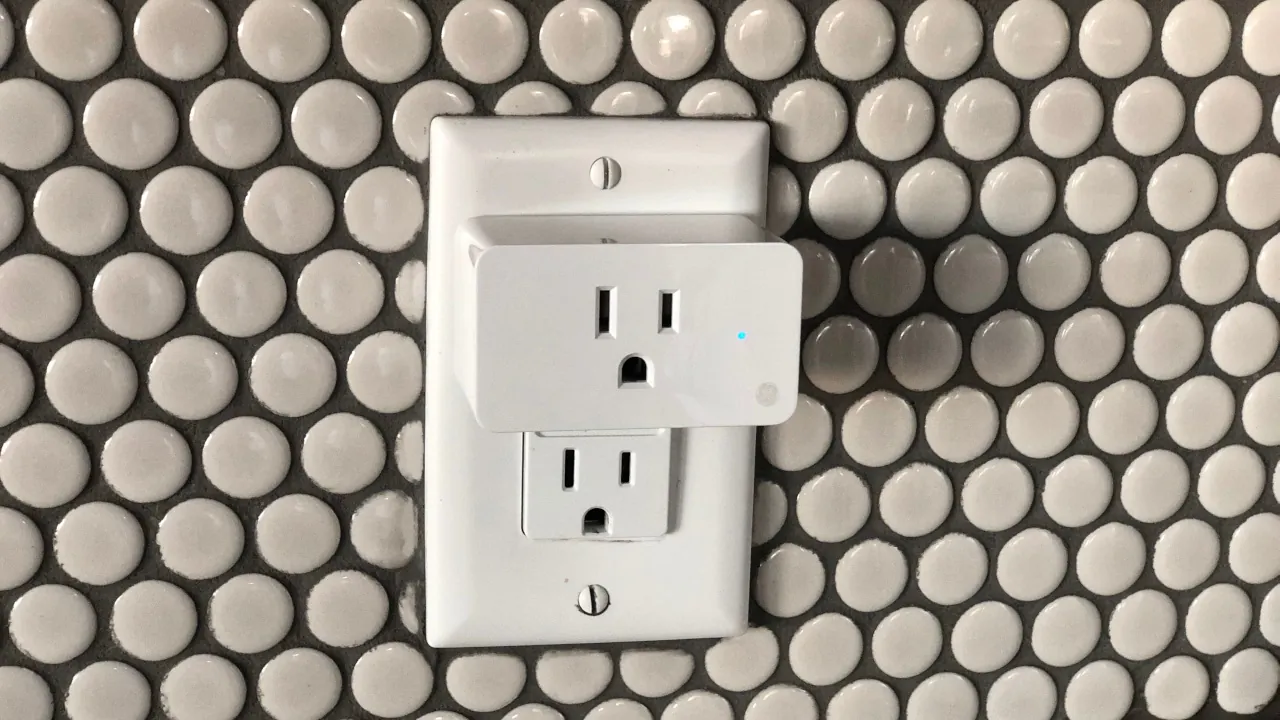
Smart plugs are the absolute easiest and cheapest way to start building a smart home. They instantly upgrade your “dumb” appliances—like lamps, coffee makers, and fans—so you can control them from your phone or with your voice. In 2026, you shouldn’t buy a plug unless it supports [LINK: Matter]. Matter ensures your plug will work perfectly with Apple Home, Google Home, Amazon Alexa, or Samsung SmartThings, so you are never locked into one brand.
We looked at the data for the newest 2026 hardware, and if you want the absolute best bang for your buck without sacrificing reliability, here are the top value picks.
1. The Overall Best Value: TP-Link Tapo P110M
The [LINK: TP-Link Tapo P110M] is our top recommendation for most people. While it costs a bit more than bare-bones budget plugs (usually around $23 for a single unit), it packs premium features you normally only find in plugs twice its price.
Key Features Explained:
Universal Compatibility: Because it uses Matter over Wi-Fi, you can set it up in seconds and share it across multiple ecosystems.
Advanced Energy Monitoring: The plug actively tracks your energy usage in kilowatt-hours (kWh) and can even report energy fed into the grid if you use a balcony solar plant. You can use this data to find out exactly which appliances are running up your electricity bill.
Compact Design: It is small enough that it won’t block the second wall outlet.
Pros & Cons
Pros: Outstanding energy reporting, extremely reliable connection, works with all major smart home platforms.
Cons: At roughly $23 a plug, it gets expensive if you want to outfit your entire house.
2. The Best Bulk Bargain: Linkind Matter Smart Plug
If you just want to add smart controls to a bunch of holiday lights or simple fans, you don’t need energy monitoring. The [LINK: Linkind Matter Smart Plug] is the ultimate bulk-buy solution for 2026.
Key Features Explained:
Unbeatable Price: You can regularly find a 4-pack on sale for around $24, breaking down to just $6 per plug.
The Smart-Home Escape Hatch: Like the Tapo, it uses Matter over Wi-Fi, meaning you can easily switch from Alexa to Apple Home next month without having to replace all your hardware.
Pros & Cons
Pros: Dirt cheap per plug, easy Matter QR-code setup, standard 15A limit handles most appliances safely.
Cons: No energy monitoring, and lacks the advanced scheduling features you get inside premium brand apps.
Who Are These Plugs Actually For?
Homeowners wanting to lower their bills: Get the TP-Link Tapo P110M. The energy monitoring will help you hunt down power-hungry appliances and set automations based on thresholds.
Renters or Beginners on a strict budget: Get the 4-pack of Linkind plugs. It is the cheapest, lowest-risk way to experiment with smart home automations without accidentally locking yourself into the wrong ecosystem.
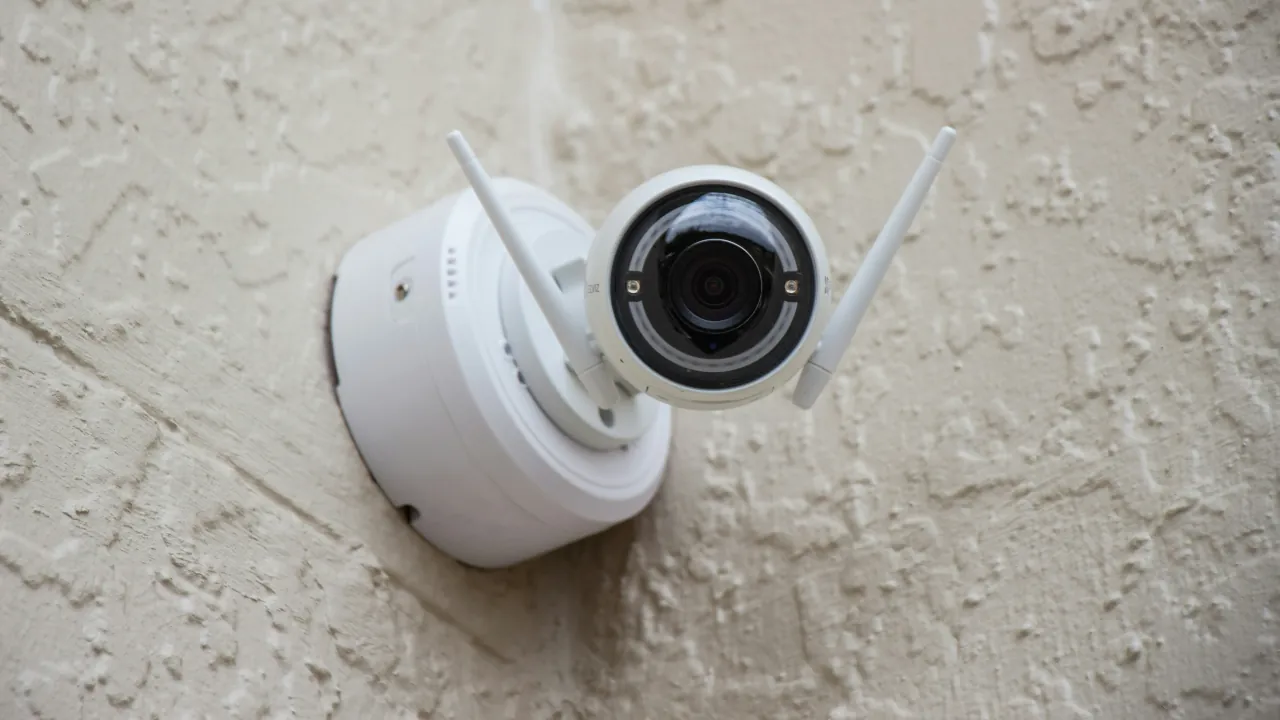
A smart security camera is only useful if it actually catches the action. When your feed drops during a crucial moment or night vision looks like a black screen, it completely defeats the purpose of having surveillance. Before you replace the hardware, try these proven fixes for the most common video, connection, and recording issues.
The Quick Troubleshooting Cheat Sheet
If you are in a hurry, check this quick breakdown of common symptoms and where to start looking:
Problem Area
Symptoms
Quick Fix
Connectivity
Camera shows as offline or constantly disconnects
Verify the power source and check your Wi-Fi signal strength at the camera’s location. Consider a Wi-Fi extender if the signal drops during bad weather.
Video Quality
Grainy daytime footage, overexposed spots, or failing night vision
Clean the lens and ensure night mode is actively enabled. Avoid pointing the camera through glass, which ruins night vision by reflecting the IR lights.
Motion Detection
Alerts for every passing car, blowing trees, or entirely missed events
Redraw your detection zones to exclude streets and trees. Turn on “person detection” if your brand supports it, and adjust the sensitivity.
Recording
Missing clips, full SD cards, or cloud upload failures
Check your cloud subscription status and upload bandwidth. Ensure SD cards are formatted to FAT32 or exFAT, not NTFS.
Fix a Camera That Keeps Going Offline
Wi-Fi drops are a major headache, especially for outdoor cameras sitting at the very edge of your router’s range.
Check the power: Verify that the power adapter, battery, or PoE (Power over Ethernet) connection is actually working. A tripped outlet or a dead battery is a very common culprit.
Do a hard reboot: Unplug the camera, wait a minute for the power to drain entirely, and plug it back in. This flushes out the cache and forces a fresh connection to your network.
Upgrade your reach: If your camera consistently drops offline during weather changes, your signal is too weak. Move the camera closer, add a Wi-Fi extender, or upgrade to a mesh network.
Pro-Tip: Most smart cameras from brands like [LINK: Ring], [LINK: Wyze], or [LINK: Tuya] require a 2.4 GHz Wi-Fi network to connect. Think of Wi-Fi bands like vehicles: 5 GHz is a sports car that goes incredibly fast but can’t handle rough terrain, while 2.4 GHz is a rugged jeep that easily pushes through exterior walls. Make sure your phone is connected to the 2.4 GHz band during the initial setup!
Solve Grainy Video and Night Vision Failures
Grainy video usually happens when a lack of light triggers aggressive image compression, or when network congestion aggressively throttles your bandwidth.
Clear the view: Clean the lens. Smudges, dust, or rain spots are the most direct cause of a blurry focus.
Fix overexposure: Avoid pointing the camera directly at light sources. Turn on WDR (Wide Dynamic Range) in the settings to balance harsh lighting, and ensure your IR lights aren’t bouncing off a nearby wall to blind the lens.
Unstick the IR filter: If your night vision is totally black despite seeing the red glow of the IR LEDs, the internal IR cut filter is likely physically stuck. Power cycling the camera for 30 seconds can usually force it to snap back into place.
Pro-Tip: Never point an indoor camera out of a glass window to monitor the outside. The glass will reflect the camera’s own IR lights straight back into the lens, causing a completely washed-out image.
Tame Annoying Motion Detection Alerts
Getting notified every time a tree branch blows is the fastest way to start ignoring your security system.
Shrink your zones: Redraw your motion detection zones so they only cover vital entry points. Explicitly exclude busy streets, sidewalks, and blowing trees.
Adjust sensitivity: Turn the overall sensitivity slider down from the default setting to reduce false alarms.
Prevent missed events: If the camera isn’t catching real people, do the opposite: expand your detection zones, increase the sensitivity, and reduce the cooldown period between recordings.
Pro-Tip: If your camera app offers a “Person Detection” or AI filter, turn it on immediately. This tells the camera to ignore passing cars and only trigger an alert when a human walks into the frame.
Recover Missing Recordings
A camera is completely useless if it forgets to save the footage.
Check Local Storage (SD Cards): Verify your MicroSD card isn’t full or corrupted. Cameras require FAT32 or exFAT formatting; if the card is accidentally formatted to NTFS, it will not record.
Check Cloud Storage: Ensure your subscription hasn’t expired and you haven’t unexpectedly hit a storage limit.
Update Firmware: Running outdated firmware can cause weird recording bugs and unstable connections. Always check for updates in your camera app.
Pro-Tip: If your video struggles to upload to the cloud, test your home network’s upload bandwidth. Even fast internet plans sometimes throttle upload speeds, causing video saves to fail.
When to Call It Quits (or Call a Pro)
It is time to replace the camera entirely if the IR LEDs have permanently failed, the lens is physically damaged, the manufacturer discontinued software support, or the camera repeatedly drops off the network even with a perfect signal.
Contact a professional or the manufacturer if you notice physical damage, smell burning plastic, or have a hardware defect like a stuck IR filter that refuses to reset. For complicated in-wall PoE wiring issues, hiring a low-voltage professional is much safer than trying to fish cables out of your ceiling yourself. If a hardwired NVR (Network Video Recorder) system drops multiple cameras all at once, the central power supply or network switch might be failing.