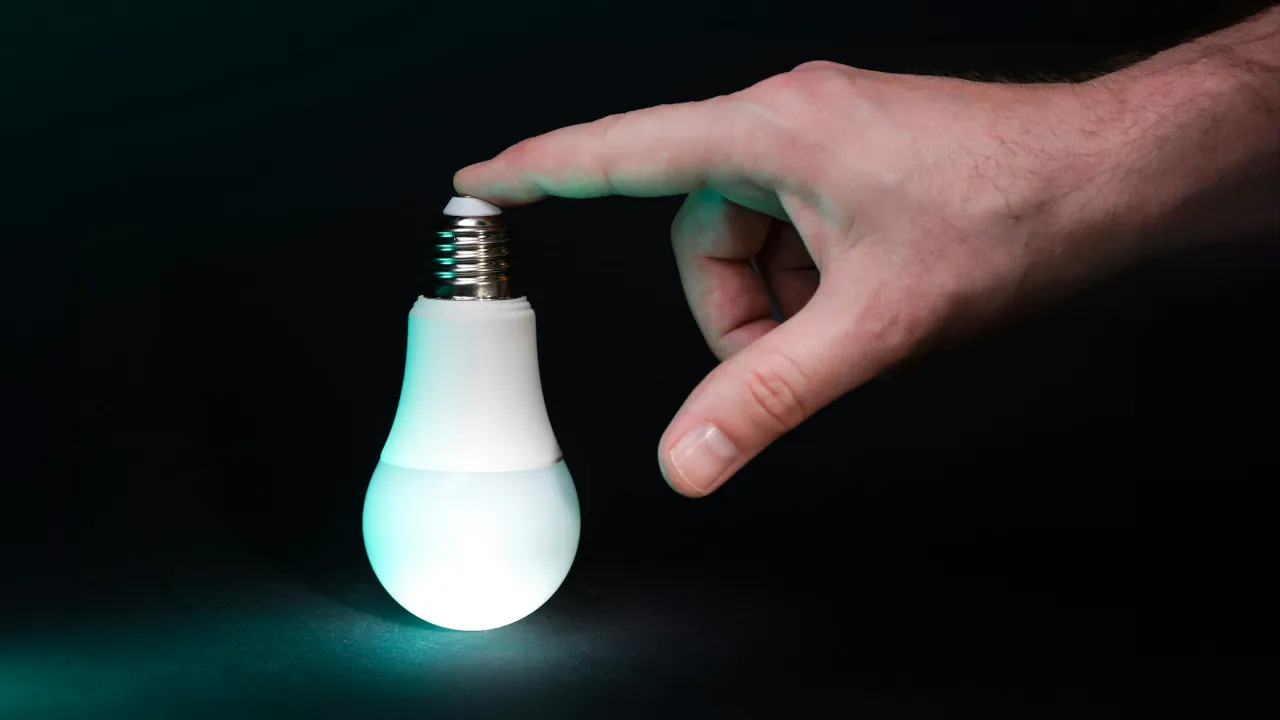
Opening your smart home app and seeing your smart light bulb listed as offline stops your daily routine in its tracks. You tap the screen, but nothing happens. Do not worry. You do not need to be a networking engineer to get your lights back online. Finding simple fixes for offline smart bulbs is easier than you might think. Let us walk through the easiest ways to get your smart lighting back on track.
1: Check the Physical Light Switch
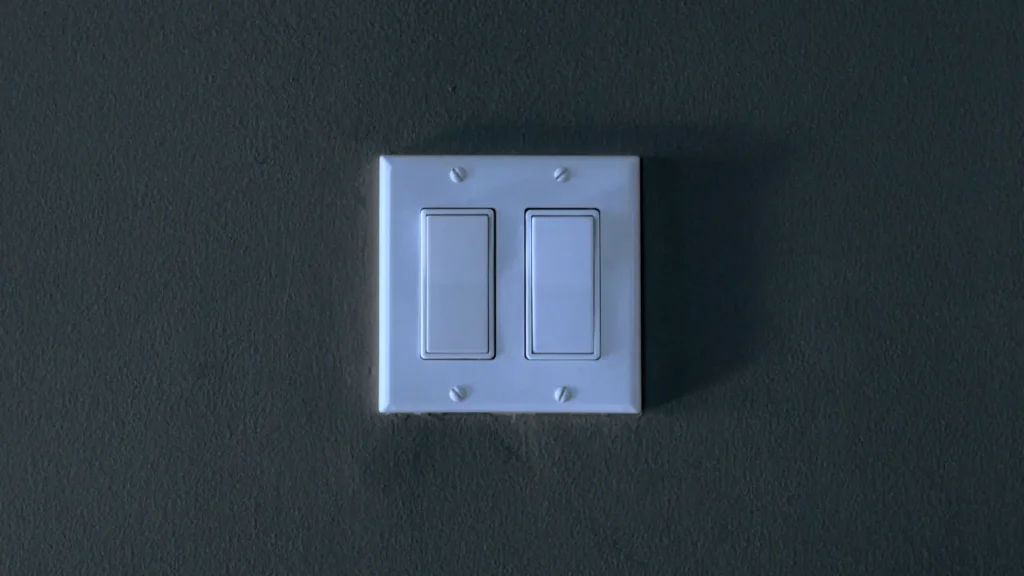
This is the most common culprit. Smart bulbs require a constant flow of electricity to communicate with your Wi-Fi network. If someone flips the physical wall switch off, the bulb loses power completely. It cannot talk to your app. Ensure the switch is in the on position. If you live with family members or roommates who constantly turn the switch off, you might want to look into a smart switch cover or a wireless button from brands like Philips Hue or Aqara.
2: Understand the 2.4GHz Rule
Most smart home devices are picky about Wi-Fi. Modern routers broadcast two different signals. One is a 5GHz signal, which is fast but covers a short distance. The other is a 2.4GHz signal, which is a bit slower but punches through walls and covers a long distance.
Think of the 5GHz network like a sports car and the 2.4GHz network like a sturdy delivery truck. Smart bulbs only need to send tiny packets of data, so they rely on the sturdy delivery truck. They physically cannot connect to a 5GHz network. Check your phone settings. Ensure your phone is connected to your 2.4GHz Wi-Fi network before you try to set the bulb up again.
3: Power Cycle the Router
Sometimes the issue is not the bulb at all. Your router can get confused when it manages dozens of connected gadgets. Unplug the power cable from the back of your router. Wait for thirty seconds. Plug the power cable back in. Wait a few minutes for the network to start up. Often, the offline bulb will automatically reconnect once the network refreshes.
4: Factory Reset the Bulb
If nothing else works, you might need to start over. Every brand has a different reset method, but it usually involves turning the physical light switch on and off rapidly a specific number of times. Check the manufacturer website for the exact sequence. Once the bulb flashes, it is ready to be added to your app like a brand new device.
5: Check for Overheating in Enclosed Fixtures
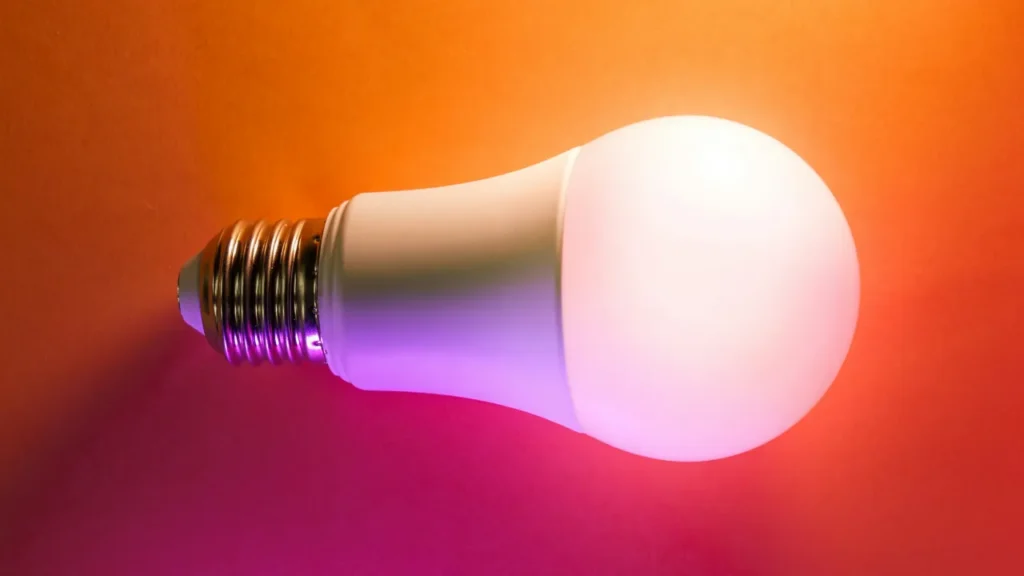
Smart bulbs contain tiny computers inside their base. If you place a smart bulb inside a fully enclosed glass ceiling fixture, that heat has nowhere to go. When the internal components get too hot, the bulb will protect itself by shutting down or disconnecting from the network. If your bulb only goes offline after being on for a few hours, check if the fixture allows for proper airflow.
6: Verify Your Router Device Limits
Most standard routers provided by your internet service provider can only handle about 25 to 30 connected wireless devices at one time. If you just bought a large pack of smart bulbs for your living room, you might have hit that hidden limit. When the router gets crowded, it will start kicking devices off the network at random. If this is happening, you might need to upgrade to a Mesh Network or a standalone router with a higher device capacity.
7: Inspect Smart Switch Compatibility
You cannot mix and match smart bulbs with smart wall switches or traditional dimmer switches. A dimmer switch works by rapidly cutting the power flow to dim a standard bulb. If you put a smart bulb on that same circuit, the smart bulb receives an unstable power supply. This unstable power causes the bulb to drop its Wi-Fi connection constantly. Always use smart bulbs with standard, basic switches that stay in the fully on position.
8: Troubleshoot Stuck Firmware Updates
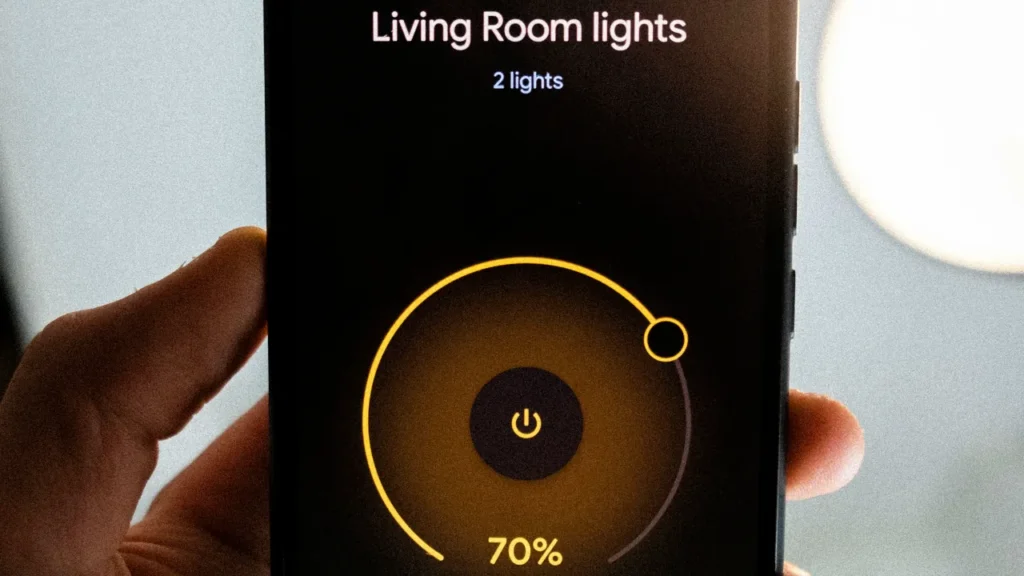
Sometimes a smart bulb goes offline right in the middle of a software update. This usually happens if the bulb loses power or if your internet connection drops for a brief moment. When a firmware update gets stuck, the bulb often becomes entirely unresponsive in your app. Do not panic. The easiest way to fix this is to force quit your smart home app completely. Next, power cycle the bulb by turning the physical light switch off, waiting ten seconds, and turning it back on. Open your app again. The app should recognize the interrupted update and prompt you to restart the process. Always make sure your phone stays close to the bulb and remains connected to the same Wi-Fi network until the progress bar reaches one hundred percent.