Your provider just sent a new router, and the Wi-Fi name on the sticker is not the one you had. Fifteen minutes later the doorbell is offline, the Echo is blinking orange and the robot vacuum is staring at a wall.
Good news first: you almost never need to reset everything. Most of the big brands let you move a device to a new network from the app, and a lot of gear will reconnect on its own if you set the router up the right way. The trick is knowing which device is which.
So here is the plan. We will start with the one move that saves most people, then go brand by brand through the steps, and finish with what to do when a stubborn device refuses to join. These steps come from each brand’s own help pages, and apps move menus around, so if something looks different on your screen, search the app’s help for “change Wi-Fi”.
Quick answer
- Best fix: give the new router the same Wi-Fi name, password and security type as the old one. Most devices reconnect on their own.
- If you cannot: Google, Alexa, Apple, Ring, eufy and Sonos all let you change Wi-Fi from the app. Cheaper gear like Kasa, Tapo, Wyze and some robot vacuums usually needs a reset or a re-add.
- Wired hubs: a Hue Bridge just needs its cable in the new router. Zigbee and Thread devices do not care what your Wi-Fi is called.
- Order: hub and speakers first, cameras next, cheap Wi-Fi plugs and bulbs last.
The Easiest Fix: Keep the Same Wi-Fi Name and Password
Smart devices do not remember your router. They remember a Wi-Fi name and a password, and they keep knocking on that exact door. If a new router answers to the same name with the same password, most devices will happily walk right in without noticing anything changed.
That is why this is the first thing to try, and TP-Link says the same for Kasa and Tapo gear. Open the new router’s settings and match three things:
- The Wi-Fi name, spelled exactly the same, capital letters included.
- The password, character for character.
- The security type, for example WPA2. If the old router used WPA2 and the new one defaults to WPA3 only, older devices will not connect.
If your provider’s router does not let you change the name, or you are already past that point, there is a second trick that home automation fans use. Keep the old router running if you still have it. Give the new one a temporary name, move devices over one by one, then rename the new Wi-Fi to the old name at the end and unplug the old router. Nothing goes offline until you decide it does.
Before You Swap Anything
Ten minutes of prep makes the whole thing calmer. You do not need a spreadsheet, just this.
- Write down the old Wi-Fi name, password and security type somewhere that is not the router itself.
- Open each smart home app and screenshot the device list, so you know what should come back online.
- Note anything with a fixed IP address or a router rule, like a camera feed in a dashboard. A new router forgets those.
- Find the reset button on the devices that are awkward to reach, like outdoor cameras. You may not need it, but it is nice to know where it is.
- Pick a quiet evening, not five minutes before a video call.
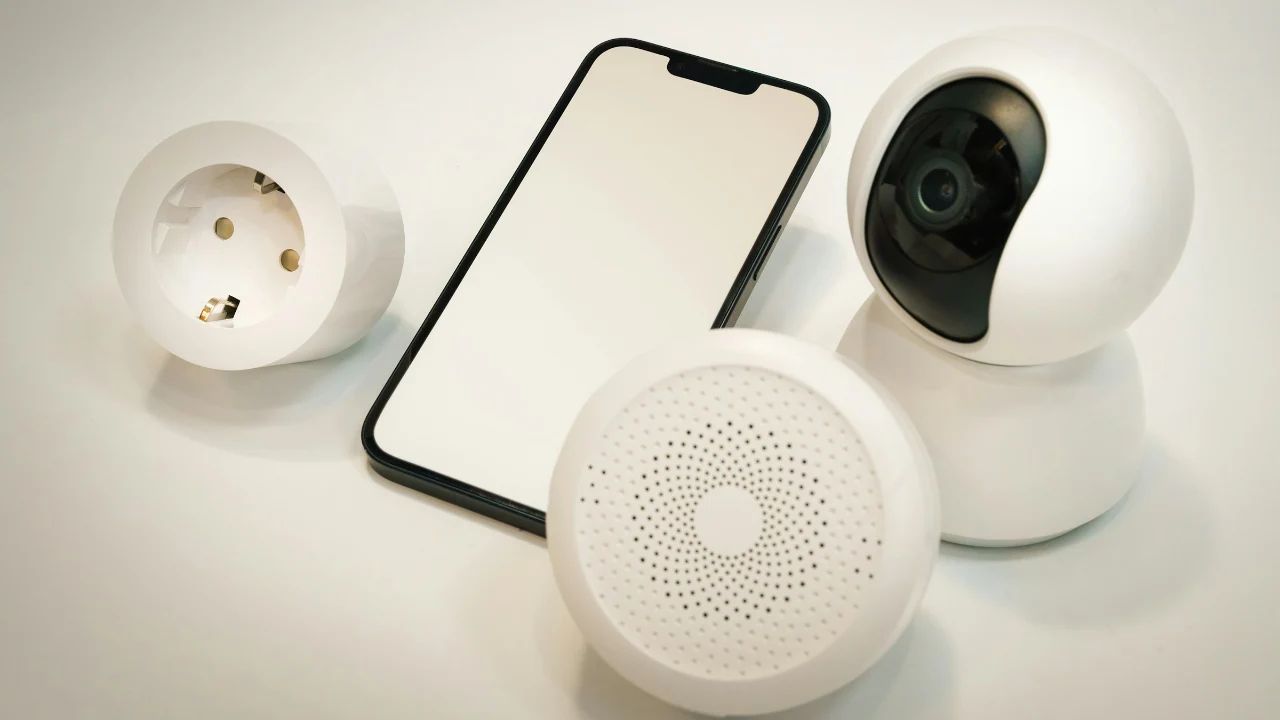
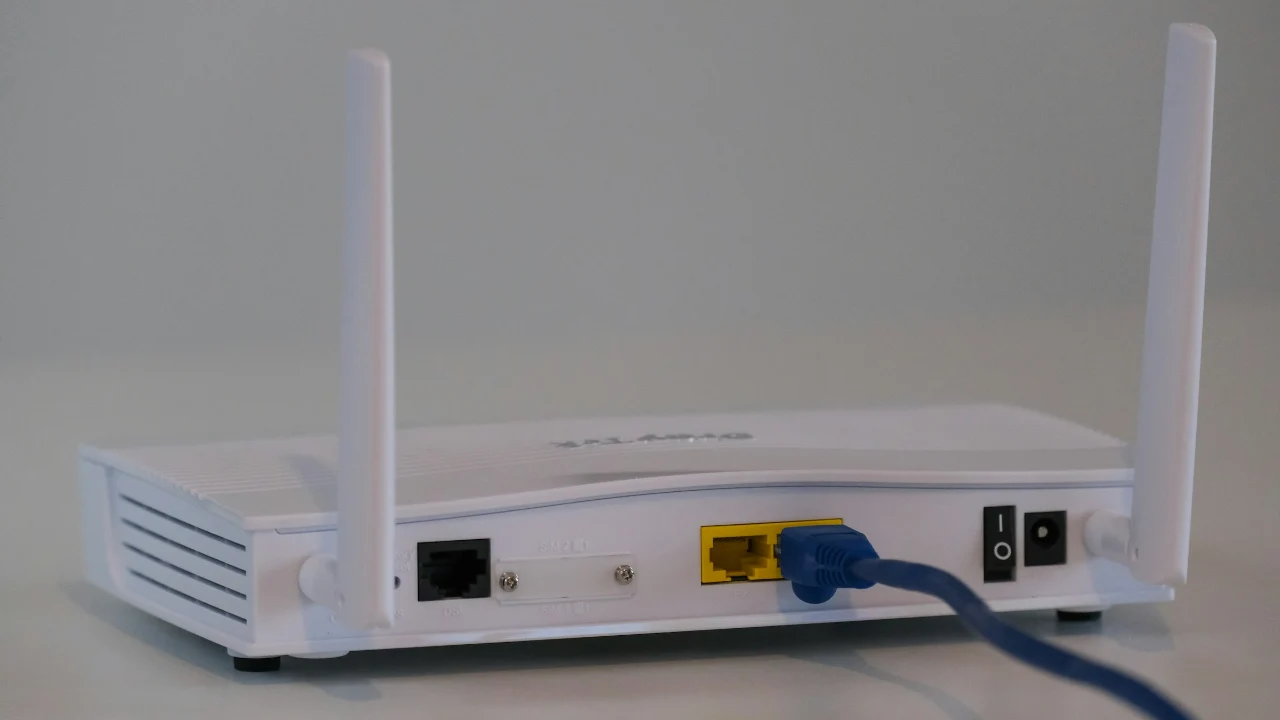
Image Credit: Jakub Żerdzicki / Unsplash
Which Devices Need What
Here is the cheat sheet. It assumes the Wi-Fi name has changed and you cannot match it.
| Device | Reset needed? | Where you change it |
|---|---|---|
| Hue Bridge and its bulbs | No | Plug the bridge into the new router |
| Google Nest speakers and displays | No | Google Home app, device Wi-Fi settings |
| Nest cameras and doorbells | Sometimes | Nest app Home Wi-Fi help, or remove and re-add |
| Alexa and Echo | No | Alexa app, device Wi-Fi settings |
| HomePod | Usually no | Home app prompt, after switching your iPhone |
| Ring | No | Ring app, Device Health |
| eufy | No | eufy app, device or HomeBase settings |
| Sonos | No | Sonos app, Update Network |
| Kasa and Tapo | Yes, or match the old name | Reset, then set up again |
| Wyze | Re-add each camera | Wyze app |
| Roomba | No | iRobot app, Wi-Fi Settings |
| Roborock | Yes, re-add | Roborock app |
Step by Step, Brand by Brand
Google Nest and Google Home
For speakers and displays, open the Google Home app, touch and hold the device tile, then go to Settings, Device information and Wi-Fi. Forget the old network there. Then tap Add, Device, Search for device and follow the prompts to join the new one. Google says to factory reset only if those steps fail, for example if you get a “could not communicate” error.
Cameras and doorbells set up in the Nest app are a bit different. Go to Settings, Home info, Home Wi-Fi help, pick the camera, then tap Start and Update settings. Turn Bluetooth on first, and have the QR code on the camera handy. If you do not see Home Wi-Fi help, or the camera lives in the Google Home app, you have to remove it and add it again, and that wipes its video history. Save clips you care about before you do. If it is a battery camera or doorbell on a Google Home Premium plan, sort out the subscription before removing it.
Thermostats are the fussiest. Google’s advice is to remove the thermostat in the Google Home app, disconnect its account in its settings, then add it again, choose “Already installed” and skip to the Wi-Fi step.
Alexa and Echo
Stand in the same room as the Echo with Bluetooth on. In the Alexa app, go to Devices, Echo and Alexa, pick the device, open Settings and tap Wi-Fi Network. If the app asks, hold the action button for about 15 seconds until the light turns orange, then let it finish pairing. When the light turns blue, you are done.
Echo Show and Echo Spot are easier. Swipe down from the top of the screen, tap the cog, open Network and pick the new Wi-Fi. Exact steps differ a bit by model, so treat this as the general shape.
Apple HomePod and Apple TV
A HomePod simply uses the Wi-Fi network your iPhone is on. So switch your iPhone to the new network first. If the Home app shows a network mismatch alert, tap View Details, scroll down and tap “Move HomePod to” followed by your network name. If no alert shows up, Apple’s fallback is to reset the HomePod and set it up again while your iPhone is on the new network. You can check which network a HomePod is on in the Home app, under its settings, in Wi-Fi Network.
One thing to know: if your router has a 6 GHz band, Apple wants the same network name on every band it supports. Splitting them into separate names can cause setup alerts. An Apple TV, on the other hand, just needs you to pick the new Wi-Fi under Settings and Network.
Here is the catch with Apple Home in general. It cannot change Wi-Fi on third-party Wi-Fi accessories like a smart plug or porch light. For those, you have to use the maker’s own app, even if the device shows up happily in the Home app.
Ring
Open the Ring app, tap the menu, then Devices, and pick the one that is offline. Open the Device Health tile and, under Network, tap Reconnect or Change Network. Follow the prompts and watch the device’s light and listen for its sounds. For battery devices, make sure the battery is properly charged first, because a low battery makes this fail in confusing ways. If a Ring Alarm Base Station is being difficult, connecting it to the router with an Ethernet cable is a good troubleshooting step.
eufy
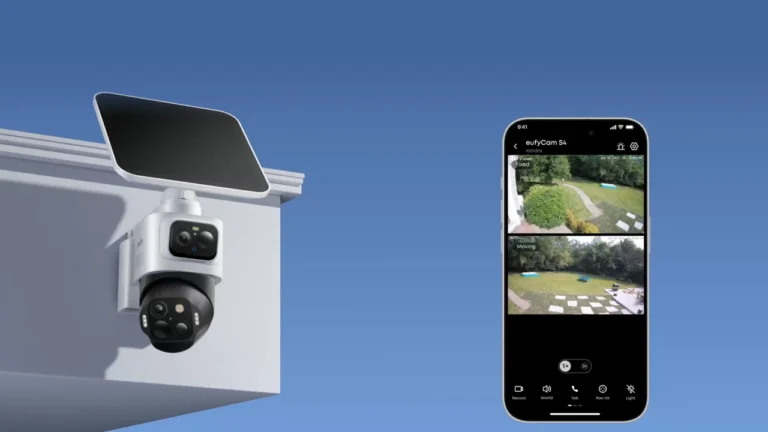
eufy makes this simple. In the eufy app, open the device’s settings, go to General, then Wi-Fi Connection, and enter the new Wi-Fi password. No reset and no re-adding. If your cameras connect through a HomeBase, change the Wi-Fi on the HomeBase and the cameras follow. Standalone devices like wired doorbells and indoor cams each need to be changed on their own. One caveat: eufy’s own page says the HomeBase 3 does not have a Wi-Fi Connection option, so check eufy’s support site if that is the one you own.
Wyze and Aqara cameras
These two are the annoying ones. As far as we can tell, Wyze does not let you change the Wi-Fi on an existing camera, so you add each one again in the app. You do not have to delete the old entry first, though you will want to tidy it up later. Aqara cameras also need a reset, then you reconnect them in the Aqara Home app and pick the new network. If you have a lot of these, this is the best argument for matching the old Wi-Fi name.
Philips Hue
The Hue Bridge does not use Wi-Fi at all. It plugs into your router with an Ethernet cable, and your bulbs talk to the bridge over Zigbee. So after a router swap, plug the cable into the new router, wait for the three lights to turn solid blue and open the app. Your bulbs and routines stay put.
If the bridge shows as offline, unplug it for about 30 seconds and plug it back in. Then try a different router port or cable, and look in the new router’s device list for an old entry for the bridge that might be causing a conflict. Only reset the bridge as a last resort, and back up first under Settings, My Hue System, Backup.
Samsung SmartThings
The hub is happiest on Ethernet, so plug it into the new router if you can. People on the SmartThings community report that the in-app Wi-Fi change option is greyed out on some hubs, so matching the old Wi-Fi name and password is the dependable route. One more tip from the same threads: if you move your Wi-Fi to a new 2.4 GHz channel, Zigbee devices on the hub can drop out for a while, and recovery sometimes takes hours.
Sonos
Do not unplug anything yet. Open the Sonos app and wait. When it says “No products found,” go to Settings, tap Visit Help Center, then Update Network, and follow the prompts to move each speaker to the new Wi-Fi. If any of your speakers use Ethernet, keep them unplugged from the cable until all of them are on the new network, then plug the cables back in.
Kasa and Tapo
Here is the honest version. The Kasa and Tapo apps cannot move a device to a new network. TP-Link’s recommendation is to match the old Wi-Fi name, security type and password on the new router and let the devices reconnect on their own. If that is not possible, reset each device using its quick start guide and set it up again.
Robot vacuums
Roomba is the easy one. Put your phone on the new network, then in the iRobot app open Settings and Wi-Fi Settings from the clean screen, and pick the network. Roborock is the reverse. You remove the robot in the app, hold the right button combination on the robot to reset its Wi-Fi, then add it again with the new network details. The exact buttons vary by model, so check your manual before you start holding things down.
What About Matter and Thread Devices?
Thread devices do not connect to your home Wi-Fi at all. They talk to each other in their own little mesh, and a border router such as a HomePod, Nest Hub or Echo links that mesh to your network. So when you swap the router, what matters is that your border routers rejoin the new network. Once they are back, the Thread devices behind them usually carry on as if nothing happened. If you want the full picture, we explain how it works in our guide to what Thread is and why your smart home wants it.
Zigbee and Z-Wave devices are the same story. They pair to a hub, not to your router, so the hub just needs to be back online. Our Zigbee versus Z-Wave piece covers why they behave that way.
Matter does not fix any of this by itself. A Matter device that connects over Wi-Fi is still a Wi-Fi device, and it has the same problems as everything above. Matter does not manage or report on network changes either, so check each device afterward instead of trusting that it sorted itself out.
When a Device Still Will Not Connect
If you have followed the steps and one stubborn gadget is still offline, run through this list before you reach for a factory reset.
- Is it a 2.4 GHz device? Most smart plugs, bulbs and cameras are, and they cannot see a 5 GHz-only network. Make sure your router is broadcasting 2.4 GHz.
- Is the security setting too new? Some older devices cannot join WPA3-only networks. A WPA2/WPA3 mixed mode usually solves it.
- Is it close enough? Do the setup next to the router, then move the device back after it connects.
- Does your router have a guest network or client isolation turned on? That can stop your phone from finding devices during setup.
- Is a VPN running on your phone? Turn it off for setup.
- Did you restart the device and the router? It sounds silly, and it fixes a surprising number of these.
Also, if a device that used to have a fixed IP now shows up with a new one, set up a DHCP reservation again in the new router so dashboards and integrations can find it.
Do This Next Time
Once everything is back, take five minutes to make the next switch painless. Save your Wi-Fi name, password and security type in a password manager. Keep a list of devices and which app controls each one. And think about putting your gadgets on a separate network of their own, which also keeps them away from your laptops. We walk through that in isolating your smart devices with a guest network.
The short version is this. Match the old Wi-Fi name and password if you can, do the hub and speakers first, and save the cheap gear for last. Most of the time, you will be back online in an evening, and without resetting every gadget in the house.