You open Home Assistant, or dig through your Home app, and there it is. Thread networks, plural. Not one. Not two. Five.
If that sounds familiar, you are in good company. Every time you add a speaker, display or hub from a different brand, there is a decent chance it quietly starts its own Thread network instead of joining the one you already have. Nobody asks you. It just happens, and a few months later your door sensor says “No Response” while a HomePod sits two meters away.
Here is why it happens, whether it really causes your dropouts, and how Thread 1.4 is supposed to make the whole problem go away.
Quick answer
- Is it normal? Very. Mixed-ecosystem homes end up with one Thread network per brand all the time.
- Does it cause dropouts? It can, mostly by splitting your mesh into several weak ones. Plenty of homes run two or three and never notice.
- What does Thread 1.4 change? New and updated border routers can share network credentials, so they join your network instead of starting another.
- What should you do? Update every border router first, unplug the extras second, and only re-add devices if they still drop.
Wait, Why Are There Five of Them?
Quick refresher, and we have a full explainer on what Thread is and why your smart home wants it if you want the long version. A Thread network is one mesh of devices that share a name, a key and a radio channel. A border router is the door between that mesh and your normal home network, so your phone and your hub can actually talk to it.
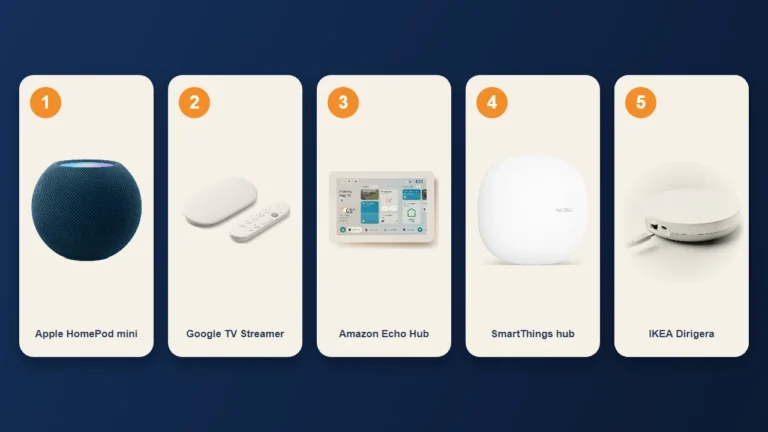
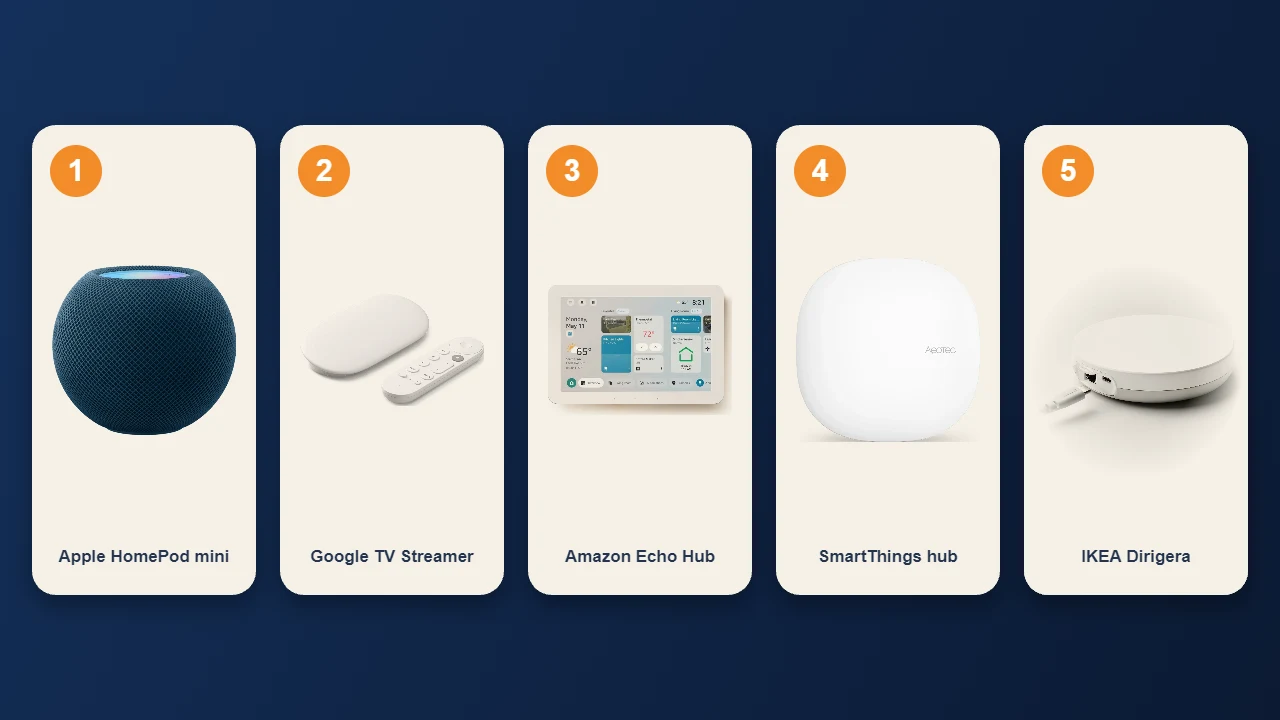
Lots of gear sold in the last few years doubles as a border router. The HomePod mini and Apple TV 4K, the Google TV Streamer and Nest Hub, the Echo Hub, the SmartThings hub from Aeotec, IKEA’s Dirigera. Plug any of them in and it can run Thread for you.
Here is the catch. For years, each of those border routers created its own brand new network during setup, because it had no way to find out about anyone else’s. Picture five neighbors who each set up their own Wi-Fi in your house, with five different passwords, when one would have done the job. Everything works fine until a device needs something from a network it is not on, and then it does not.
That is how you end up with five. Apple, Google, Amazon, Samsung and IKEA, all politely minding their own business.
Do Multiple Thread Networks Really Cause Dropouts?
Sometimes. Not always, and we would rather be honest about that than blame every hiccup on it. Here is how it can bite you.
- A Thread device belongs to one network only. If a sensor joined the IKEA network and you unplug the Dirigera to tidy a shelf, that sensor does not hop over to the HomePod right next to it. It just goes offline.
- Plugs and bulbs that stay powered relay messages, but only for their own network. Five small meshes are weaker than one big one, especially for battery sensors at the far edge of the house.
- Every network shares the same crowded 2.4 GHz airspace as your Wi-Fi, Bluetooth and Zigbee. More networks means more chatter, which can matter in an apartment with lots of neighbors.
None of this is dramatic by itself. It adds up, though, and it explains the classic pattern of devices that work perfectly for weeks and then fall off for no obvious reason.
How to See How Many Thread Networks You Have
Before you fix anything, count. The tools are not great, but they exist.
- Home Assistant has the clearest view. Open the Thread integration under Devices and services, and it lists every network it can see along with the border routers on each one.
- In Apple’s Home app, recent iOS versions show Thread networks in the home settings, which is a quick way to see which of your Apple devices are acting as border routers.
- Google Home and Alexa show less, and where they put it keeps moving between app updates, so poke around the device and network settings.
- No luck with any of that? Use a rule of thumb. Every ecosystem that has its own hub or smart speaker with Thread probably has its own network.
What Thread 1.4 Changes
Thread 1.4 is the first version aimed squarely at the five-networks mess. Its headline feature is credential sharing. With your permission, one border router can hand a network’s name and key to another one, even from a different brand, so the new device joins your existing network instead of creating a fresh one. Matter 1.4 added the plumbing that lets ecosystems discover an existing network and ask to use it.
Two things to keep your expectations realistic. First, border routers need to be certified for Thread 1.4, so the feature only works on hardware that has passed that certification or got updated to support it. Some older devices will get there through software updates, and some probably will not. Second, nothing here merges the networks you already have. Credential sharing keeps new and updated routers from making things worse. It will not reach into your house and tidy up five networks on its own.
Rollout is also happening brand by brand, so what your Apple, Google and Amazon gear can do today may change after the next update. Read the update notes for your hubs. If one mentions Thread 1.4 or Thread network sharing, that is the one you have been waiting for.
How to Fix It Without Resetting Everything
Please do not factory reset your whole smart home. We know the temptation. Go in this order and stop as soon as things settle down.
- Update every border router first. HomePods, Apple TVs, Nest displays, Echo devices, hubs, all of it. Do this before changing anything, because the update is what may give older hardware the new sharing ability.
- Pick a home base. Choose the ecosystem with the most Thread devices in it. That is the network you want to keep.
- Unplug the extras, carefully. Five border routers from five brands is overkill, and two or three spread around the house is plenty for most homes. Only unplug one once nothing you care about, like a lock, lives on its network.
- Say yes when an app offers to use your existing Thread network. As support arrives, setup screens on newer devices may ask. That one tap is the whole point of Thread 1.4.
- Re-add the stubborn ones. If a device still lives on a network you want gone, remove it and add it again so it joins your main one. Do one device at a time and test in between.
- Shore up the weak spots. A plug or bulb with Thread that stays powered helps the mesh reach the far corners of your home. Battery sensors cannot do that job.
One thing trips a lot of people up. Adding a Matter device to a second app, say Apple Home plus Google Home, does not put it on a second Thread network. It stays on the one it joined. The extra networks come from border routers, not from sharing devices.
If you like a cheat sheet, here is the short version.
| Fix | Effort | Best when |
|---|---|---|
| Update all border routers | Low | Always the first move |
| Unplug extra border routers | Low | You have four or more |
| Re-add flaky devices to your main network | Medium | A few devices still drop |
| Rebuild on one network | High | Nothing else has worked |
What to Check Before You Buy Another Border Router
Here is the funny part. Buying another hub to cure dropouts can make things worse, because an older router that cannot share credentials may happily start network number six. Before you buy, look for Thread 1.4 on the spec sheet, the box or the support page. If it only says Thread, or only says Matter, ask first or wait.
A wired Ethernet connection is a nice bonus, since it keeps the border router off your crowded Wi-Fi. And if your home is small, you may not need another one at all. If you are still choosing a hub, our piece on hubs that think locally is a good place to start, and how well Google Home handles Matter covers one of the big ecosystems in more detail.
When You Can Leave It Alone
If your devices behave, you can ignore all of this. Multiple Thread networks are not a crime, and some people keep a separate one on purpose, for example for Home Assistant. The time to act is when devices drop out, battery sensors answer slowly, or your count creeps past three.
Update first, unplug second, re-add last. That order saves most people an afternoon of frustration. Five networks sounds scary, but it is usually a software update and a couple of unplugged hubs away from boring, which is exactly what you want from a smart home.