Every smart bulb, plug, and camera in your house talks constantly to remote servers. That signal path sits right next to your laptop, your phone, and your family photos, because most people add smart gadgets straight onto their main Wi-Fi network. A guest network, sometimes labeled an IoT network, creates a separate lane for those devices instead. It means a compromised bulb can never become a doorway into your personal files. Setting one up takes only a few minutes, but the details matter. Isolation can break your smart home just as easily as it protects it, if you skip a few things routers rarely explain clearly.
Why Your Wi-Fi Network Is an Open Door
Smart home gadgets constantly phone home to remote servers to fetch commands and firmware. When a smart bulb sits on the same Wi-Fi network as your laptop and phone, it shares that network with every other device in the house. Think of your home network like a shared living room. If a compromised device gets invited into that living room, it can look around and find your computer, watch your browsing traffic, or reach files on a network drive. A bad actor who breaks into a cheap bulb or plug can use it as a stepping stone toward the devices that actually matter.
The Guest House Solution
Most modern routers include a feature that creates a completely separate sub-network, often called a guest network or IoT network. Picture it as a detached guest house on your property. Devices inside that guest house still get power and water, so your smart bulbs still connect to the internet and run your schedules normally. However, the people staying in the guest house cannot walk into your main home or open your bedroom door. If a smart plug gets compromised, the damage stays contained inside the guest network instead of spreading to your laptop. On an ASUS router, for example, this toggle is called Access Intranet, and switching it off keeps guest devices out of your main home entirely.
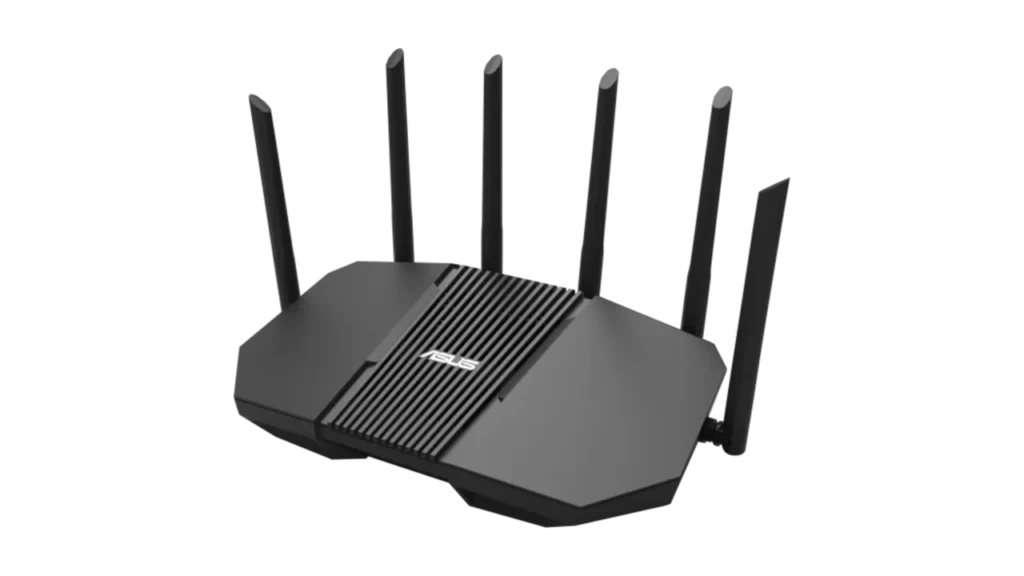
Image Credit: Asus
Setting Up Your Guest Network
The setup itself takes only a few minutes inside your router app or web interface.
- Log into your router application or web dashboard.
- Find the wireless settings and locate the Guest Network or IoT Network option.
- Give the network a distinct name, such as Home IoT, and set a strong password.
- Confirm that the network isolation setting is enabled, so guest devices cannot reach your main computers.
- Connect your smart bulbs, plugs, and cameras to this new network.
If you already run dozens of gadgets across several rooms, your equipment needs to handle that traffic without dropping connections. Our mesh Wi-Fi comparison guide can help you decide if it is time to upgrade your setup.
When Isolation Breaks Your Smart Home
Guest network isolation does not just block your smart devices from reaching your laptop. On most routers, it also blocks those devices from reaching each other. That distinction trips up a lot of people. A Philips Hue Bridge and its bulbs need to talk to each other locally, and so do the speakers in a multi-room Sonos or Chromecast group. If you split a bridge and its bulbs across the main network and the guest network, the whole system may stop responding. Before isolating anything, check whether the devices you own actually need to communicate with each other, and if so, keep that entire group on the same network. Some routers offer a middle ground here. TP-Link Deco, for instance, has a Device Isolation feature that blocks isolated devices from reaching your main network, while still letting those isolated devices talk to each other. That setup lets a Hue Bridge and its bulbs stay connected to one another, while keeping the whole group away from your laptop.
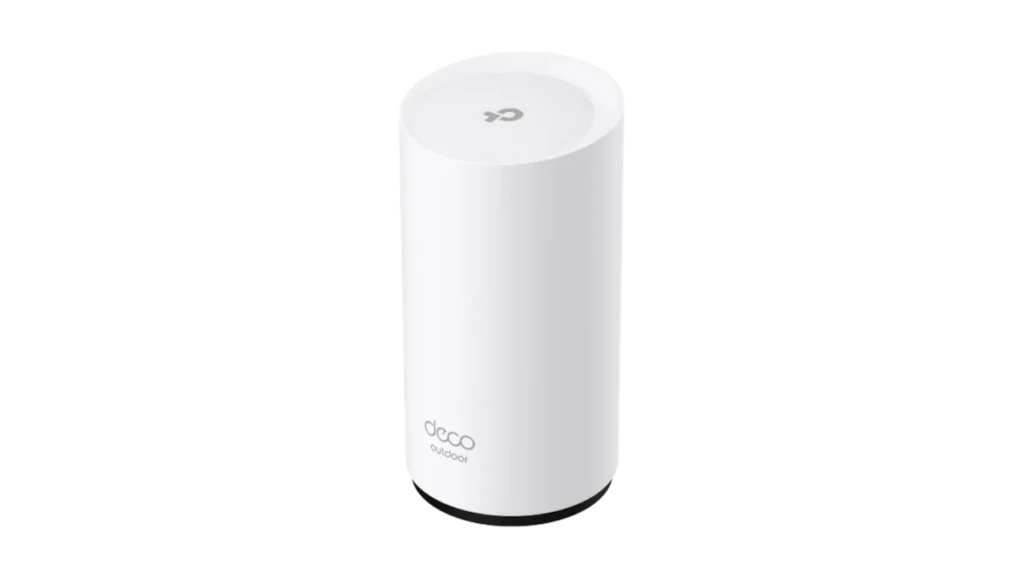
Image Credit: TP-Link
One More Setting Worth Checking
On a Netgear Nighthawk router, this same idea shows up as a checkbox labeled Allow guests to see each other and access my local network. Leaving it unchecked keeps your guest devices contained, the same way Access Intranet and Device Isolation do on other brands. The wording changes from router to router, but the underlying protection is the same.
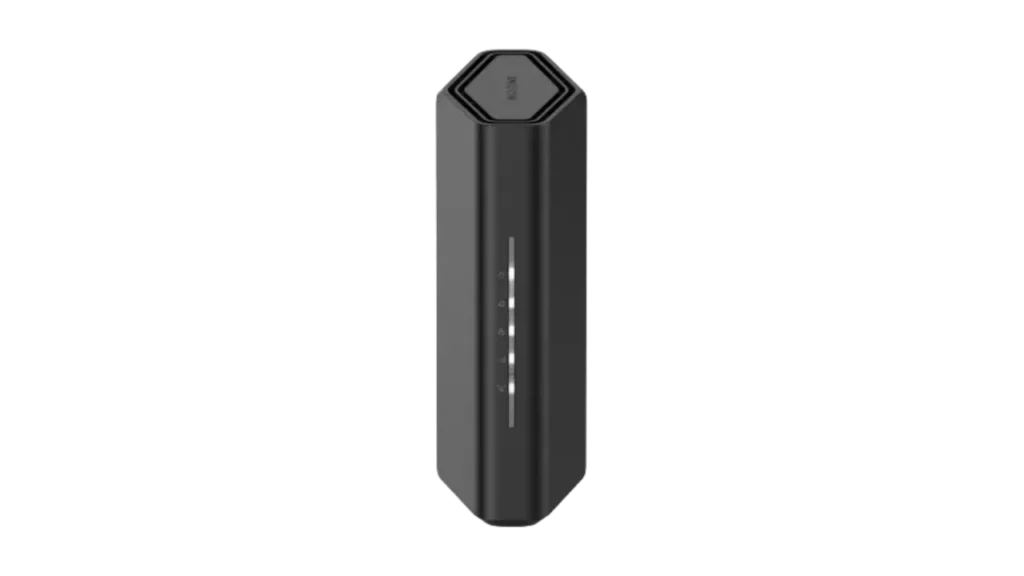
Image Credit: Netgear
Going Further With VLANs
A guest network is enough for most households, but it has limits. Guest networks typically only support one network per band, and you cannot set detailed rules between devices. For more control, some routers offer VLANs, short for virtual local area networks. Think of a VLAN as adding extra hallways inside the same building, each with its own locked door, instead of building a separate guest house next door. VLANs let you decide exactly which devices can talk to which, but they usually require a router with more advanced firmware. If your current setup already covers your needs, a guest network is plenty. If you want tighter control over dozens of devices, a VLAN-capable router is worth researching next.