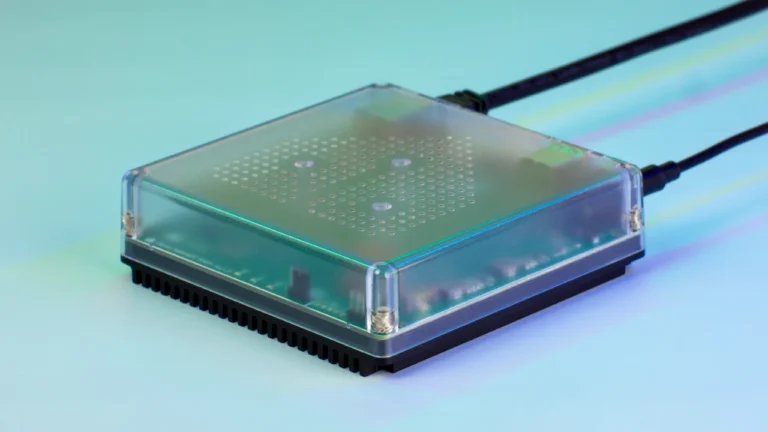
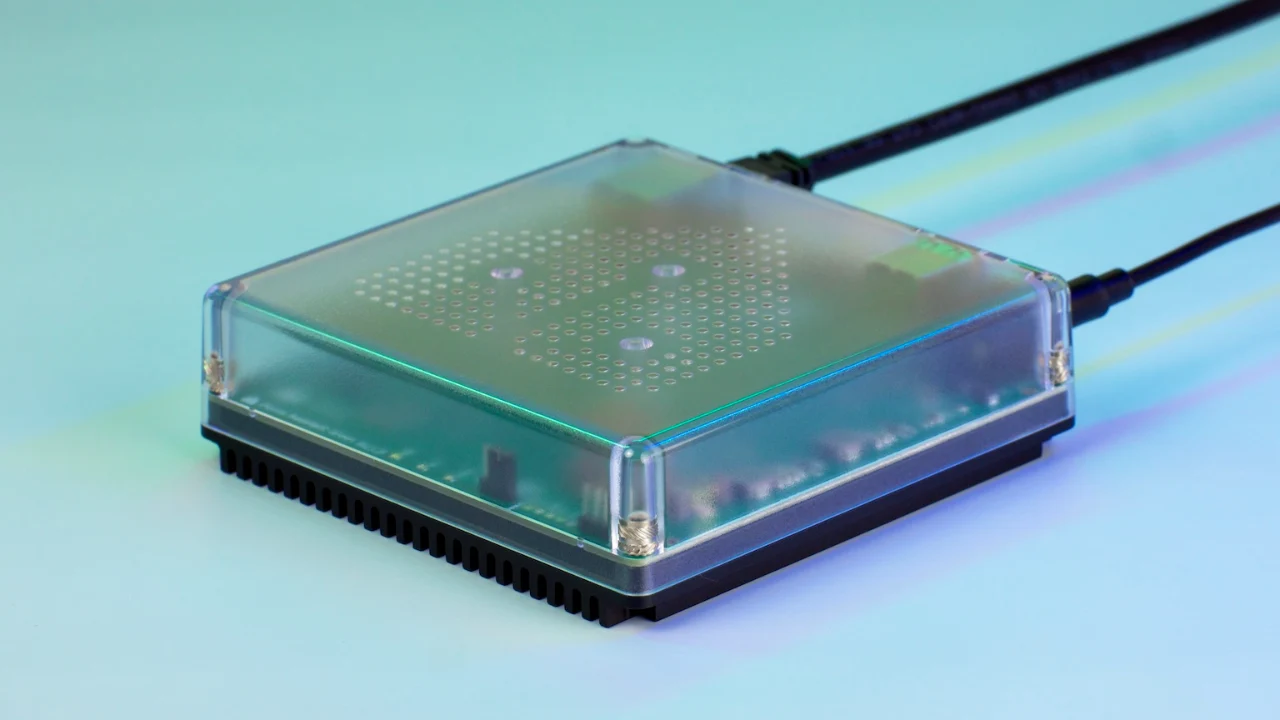
Home Assistant Green is a bit like a blank notebook. It arrives ready to go, but it won’t do anything clever until you tell it what to do. That is where automations come in: small “if this, then that” rules that quietly run your house so you don’t have to.
Home Assistant lists the Green at a recommended $199 before tax. If yours is still in the box, or already sitting on the shelf with a few devices connected, here are the five automations I’d build first. They’re simple, they’re useful, and each one teaches a trick you’ll reuse later.
Quick answer
- The five: a lamp that turns on at sunset, a motion light that switches itself off, a welcome-home light, a door-left-open alert, and a low-battery alert.
- What you need: your Green on Ethernet, the Companion app on your phone, and a smart plug or bulb for the first three. The alerts need a door sensor and any battery-powered device.
- Easiest first win: the sunset lamp. Most useful long term: the low-battery alert.
- Good to know: Home Assistant lists the Green at a recommended $199 before tax, and Zigbee or Thread devices need the separate Connect ZBT-2.
Before You Start
If the hub is still sealed up, setup is pleasantly dull. Plug in the power and the Ethernet cable (the Green has an Ethernet port and, according to Home Assistant’s own page, no Wi-Fi), then follow the prompts in the Home Assistant app or web interface. You do need an internet connection for that first setup.
Next, install the Home Assistant Companion app on your phone and log in. Say yes to notifications, because two of our five automations send you alerts. Location sharing is optional, but automation 3 needs it. On Android that means setting location to “Allow all the time” and turning on “Nearby devices.” On iOS, choose “Allow While Using the App,” then “Allow always” at the next prompt. Home Assistant says your location data stays in your home.
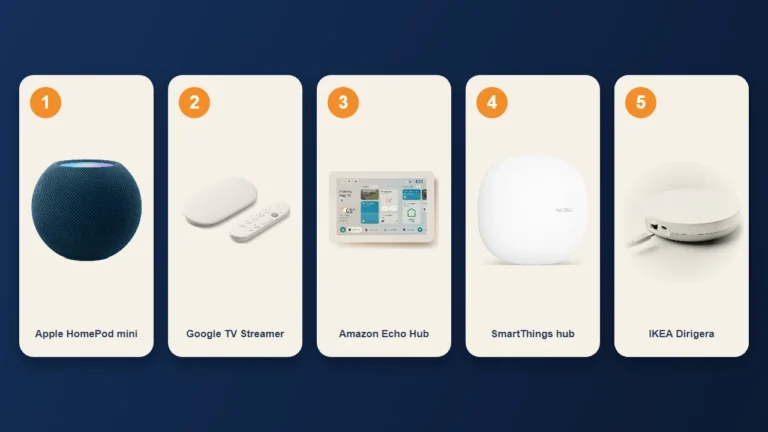
The Green can talk to plenty of devices right away, including Wi-Fi ones, and Matter devices work too with a little extra setup. Zigbee and Thread devices need the Connect ZBT-2, which is sold separately, and Z-Wave or Bluetooth need third-party USB add-ons. If those names are fuzzy, our explainers on Zigbee vs Z-Wave and Thread will sort you out.

Image Credit: Home Assistant
How an Automation Works
Every automation has up to three parts. The trigger is what starts it, like the sun setting. The condition is an optional check, like “only if it’s dark.” The action is what happens, like turning on a light.
To build one, open Settings, then Automations & scenes, select Create automation, and choose Create new automation. You’ll see three sections: When for triggers, And if for conditions, and Then do for actions. Hit Save when you’re done. Recent versions of the editor also show key details like durations and sunset offsets right in each row, which makes it much easier to see what you built at a glance.
| Automation | Trigger | You need | Effort |
|---|---|---|---|
| 1. Sunset lamp | Sun, at sunset | A smart plug or bulb | Easiest |
| 2. Motion light | Motion detected | A motion sensor and a light | Easy, uses a blueprint |
| 3. Welcome home | Your phone enters the Home zone | Companion app with location on, plus a light | Medium |
| 4. Door left open | Door open for a set time | A door or window sensor | Medium |
| 5. Low battery | Battery level drops below a number | Any battery-powered device that reports a level | Medium |
1. Turn On a Lamp at Sunset
This is the classic, and it works with just one smart plug and a lamp, so it’s the perfect first win.
In the editor, add a Sun trigger and pick sunset. You can add an offset, such as 45 minutes before, so the lamp is already glowing by the time the room starts to feel gloomy. Home Assistant’s docs point out that twilight length changes through the year, so a sun elevation trigger can feel more consistent than an offset. Start with the offset, and swap it later if the timing bugs you.
For the action, choose to turn on your lamp or plug. If you want it to turn off on its own, make a second automation with a Time trigger at bedtime. Two tiny automations beat one clever one when you’re learning.

Image Credit: Lisha Riabinina / Unsplash
2. A Motion Light That Turns Itself Off
Hallways, bathrooms, and laundry rooms are the natural fit: anywhere your hands are full and the switch is far away. This one is easiest with a blueprint, which is a ready-made automation where you just fill in the blanks.
Go to Settings, then Automations & scenes, then Blueprints. Home Assistant has a motion light blueprint, and if it isn’t in your list you can import one with Import Blueprint and a web address. Select Create automation, then choose your motion sensor, your light, and how long to wait after motion stops. Exact field names can vary a little by version.
Two tips. While testing, set the wait time short, like 30 seconds, so you aren’t standing in the dark waiting to see if it works. And be picky about where blueprints come from. Home Assistant warns that community blueprints can change over time, and that turning a blueprint into a regular automation is a one-way trip.
3. A Welcome-Home Light
This is the “feels like the future” one. When your phone arrives home after dark, the hallway light is already on.
Add a Zone trigger, choose your person, choose the Home zone, and set it to enter. Then, under And if, add a Sun condition for after sunset so the light doesn’t switch on at noon. The action is turning on your hallway light.
If more than one person is added to the trigger, you’ll see Each, First, and All options for when it fires. First is a sensible place to start in a household, though try them and see which suits you. Phone location isn’t perfect, so give it a few days. If it fires late or early, check the size of your Home zone and your location permissions in the Companion app.
4. A Door-Left-Open Alert
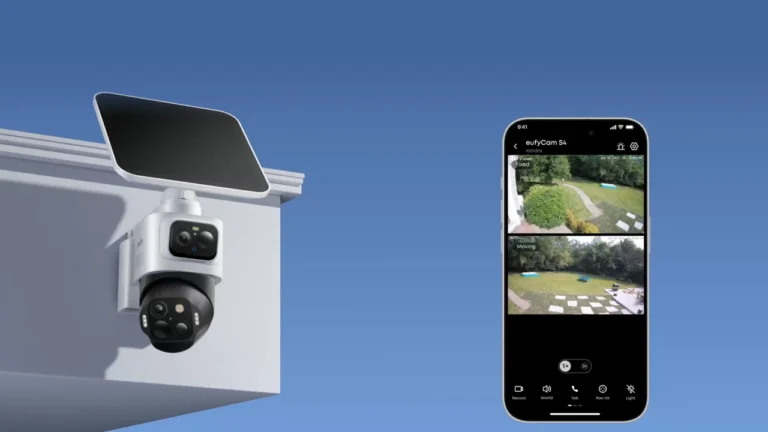
We’ve all done it: walked away from the back door and found it wide open an hour later. This automation sends a notification to your phone if a door or window stays open too long.
Add a State changed trigger, choose your door sensor, and set To to open. In the For at least box, enter a duration like 5 minutes. That’s the key to avoiding false alarms every time someone just steps out to take the trash out.
For the action, send a notification using the notify action for your phone, which appears as notify.mobile_app_ followed by your device’s name. All it needs is a message, such as “The back door has been open for 5 minutes.” Two things to know. The trigger reacts to a change, so if the door is already open when you save the automation, it waits for the next close and open. And if Home Assistant restarts or you reload automations, the countdown starts over.
5. A Low-Battery Alert
This is the least glamorous automation here and probably the one you’ll appreciate most. Nothing ruins a smart home like a motion sensor quietly dying and your hallway light just not working.
Add a Numeric state trigger, choose the battery entities of your devices, and set Below to something like 15. You can usually add several entities to one trigger, so one automation can watch them all. The action is the same phone notification as before, with a message like “A battery is running low.” Most battery-powered devices show up with a battery entity, but a few only report a simple low or normal warning rather than a percentage. Those need a State changed trigger instead.
When an Automation Doesn’t Fire
Don’t panic. Start with the automation’s Last triggered time and its traces, which show what Home Assistant did step by step and where it stopped. A condition that wasn’t met is the usual suspect, followed by a trigger that only reacts to changes. If you’re curious why running all this on a box in your home is a big deal, our piece on hubs that think locally explains it.
What to Try Next
Once these five are humming along, try a scene like “Movie time” that sets several lights at once, or swap your sunset lamp for a sun elevation trigger. The nice part is that you’ve already learned the whole pattern: pick a trigger, add a condition if you need one, choose an action. Everything else is just a variation on that.