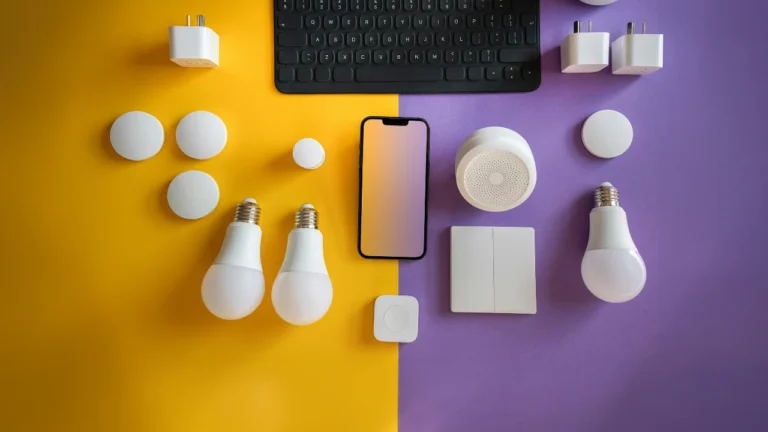
Opening your phone, finding the app and waiting for it to load just to switch on a light is slow. Philips Hue widgets fix that. Put them on your Home Screen or Lock Screen, and one tap starts a scene or turns a whole room on or off.
This guide covers what the widgets can and cannot do, how to set them up on iPhone and Android, and what to try when one goes blank. I checked it against the Hue app release notes up to version 5.70 (June 2026).
What Hue Widgets Can Do
- Start scenes: tap once to run any scene in a room or zone.
- Switch a whole room: since Hue app 5.54 (October 2025), an iPhone widget can turn all lights in a room on or off with one tap. Before that, you needed a scene for “off”.
- Run extras on iPhone: Hue has added widgets for timers and the Mimic presence automation (5.29), for starting a Go to sleep automation (5.19) and for opening a Hue Secure camera live view (5.31).
- What they do not do: I found no widget for dimming or brightness sliders in the release notes. For that, use the app, a dimmer switch or your voice assistant.
In other words, a widget is a shortcut, not a mini version of the app. The more specific you make each button, the more useful it gets.
When Each iPhone Widget Feature Arrived
| Hue app version | Date | What changed |
|---|---|---|
| 5.14 | April 2, 2024 | Widgets arrive on the Home Screen, Lock Screen and Today View |
| 5.19 | June 18, 2024 | Start a Go to sleep automation from a widget |
| 5.28 | October 15, 2024 | App icon and widgets support Dark and Tinted Home Screens |
| 5.29 | October 30, 2024 | Widgets for timers and the Mimic presence automation |
| 5.31 | November 27, 2024 | Open a Secure camera live view from a widget |
| 5.54.0 | October 30, 2025 | Toggle all lights in a room from one widget |
What You Need First
- iPhone: the Hue app at version 5.14 or newer, and iOS 17 or newer. Hueblog reports that the interactive widgets need iOS 17.
- Android: a current version of the Hue app. Hue added widget creation from the app’s Settings tab back in version 4.21 (June 2022), so any recent version has it.
- Your lights already set up: widgets only trigger rooms, zones and scenes that already exist in the app.
Three Widget Setups That Are Actually Useful
Before you add buttons, decide what each one is for. These three cover most homes:
- The Master Switch: a small button with one job. Tap it when you leave the house or get into bed, and every light goes off.
- The Scene Set: a larger widget with several scenes for the room you use most, such as a reading mode or a movie night scene.
- The Floor Control: one widget for a zone or a group of rooms, so you can change a whole floor at once.
How to Add Hue Widgets on iPhone
On the Home Screen, a Hue widget replaces a 2×2, 4×2 or 2×4 block of icons. The largest size holds up to eight scenes. On the Lock Screen there are two sizes. Hueblog has a full walkthrough if you want screenshots.
Add It to the Home Screen
- Press and hold an empty spot on your Home Screen until the icons wiggle, then tap the plus icon in the top left.
- Search for Hue, pick a size and tap Add Widget.
- Place the widget and tap Done. It starts out empty.
- Press and hold the widget and tap Edit Widget.
- For each slot, choose a bridge and a room, or pick specific scenes.
- Tap outside the editor to close it. The widget is ready.
Add It to the Lock Screen
- Press and hold your Lock Screen until it enters edit mode.
- Tap Customize and choose the Lock Screen you want to change.
- Tap Add Widgets under the time and search for Hue.
- Drag a size into the free space, tap the empty widget and assign an action.
- Tap Done.
Good to know: if Hue does not show up in the widget list right after an update, restart your phone and try again. And since app version 5.28, Hue widgets also follow the Dark and Tinted looks if you customize your Home Screen.
How to Add Hue Widgets on Android
Android is simpler, because you can build the widget from inside the Hue app. Hue added this in version 4.21, so you do not have to start from the Home Screen.
- Open the Hue app and tap the gear icon for Settings.
- Select Widgets.
- Choose what the widget should do: a scene, a room or a zone.
- Place it on your Home Screen.
You can also take the classic route. Long-press an empty spot on your Home Screen, open Widgets, find Hue and pick a size. Both methods end up with the same widget.
Widget Blank or Missing? Try This
- Hue is not in the widget list: update the Hue app, restart your phone and check your iOS version. iPhones need iOS 17 or newer.
- The widget is blank or gray after a system update: restart the phone first. If it is still empty, delete the widget and add it again.
- You tap it and nothing happens: open the Hue app and check that the lights respond there. If they do not, start with our guide to fixing offline smart bulbs.
FAQ
Do Hue widgets work on iPad?
Yes. Hue announced the widgets for both iPhone and iPad with app version 5.14.
Which iOS version do I need for Hue widgets?
iOS 17 or newer. The widgets use the interactive features Apple introduced in that version.
Can a Hue widget dim my lights?
I could not find a dimming widget in the Hue release notes. Widgets run scenes and switch rooms. For brightness, use the app, a Hue dimmer switch or a voice assistant.
Can one widget control several rooms?
Yes. You pick a room or specific scenes for each slot, and rooms from different bridges can share one widget.
Is It Worth Setting Up?
Yes, if you use the Hue app more than a couple of times a day. A Master Switch and one scene widget take about five minutes and save you a lot of unlocking and scrolling. Widgets also pair well with a bigger plan. If you are still building your setup, read our guide to building a smart home on any budget.
Image Credit: Signify / Philips Hue